
How to enable maps & why enabling map is a good idea
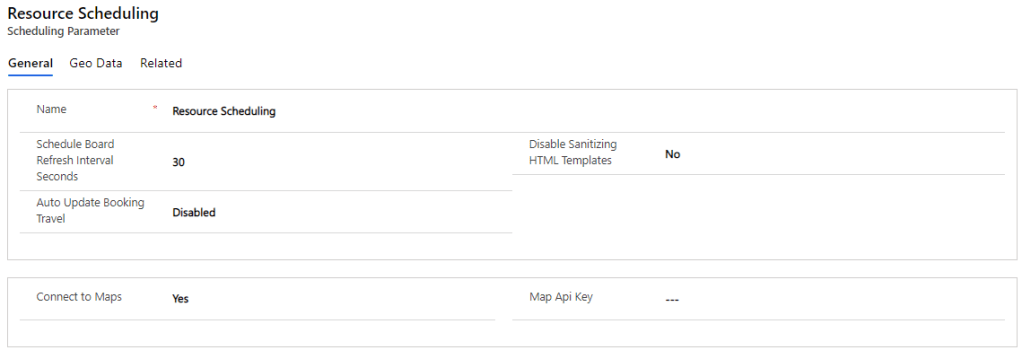
When you first install the Microsoft D365 Field Service, you have sample data, including configuration data to get you started. However, it is not connected to maps (at the time of writing this article), and this needs to be enabled for geocoding to work correctly. To enable maps, the following steps below are required:
- Go to Resources
- Select Scheduling Parameters
- On General Tab, you’d see a flag to enable Connect to Maps
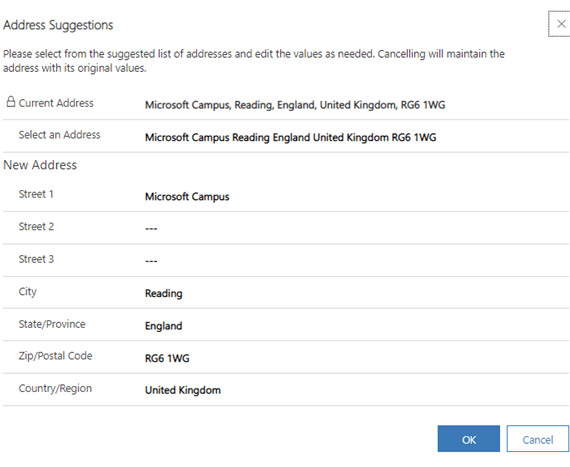
When the maps are enabled the user shall get address suggestions when populating the Account or Contact address as shown below:
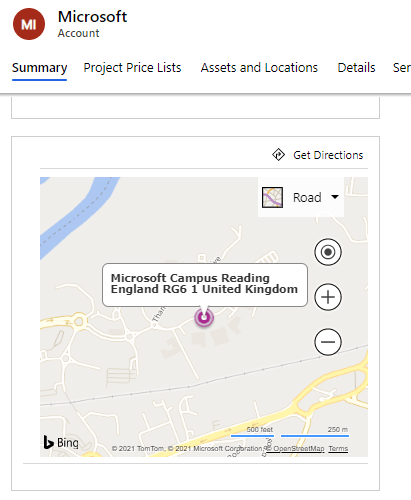
If you want to see the maps on the form, then it is essential to set ‘Enable Bing Maps’ to ‘Yes’ within System Settings as shown below:

Once enabled, refresh the form where the map is enabled and it will appear below:
The longitude and latitude shall be populated if the geo-coding has worked:
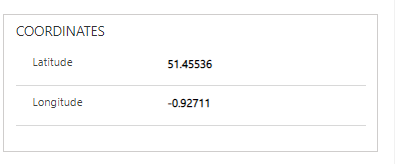
If the longitude and latitude aren’t populated, it is possible to force this by selecting the Geocode button on the command bar on the record as shown below:

Where this is not enabled, users shall see the following message:
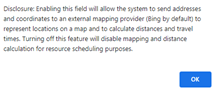
By default, the Bing map API key is not required for this to work as its natively integrated. However, an API key is required to integrate with another mapping solution.
 Learn PowerPlatform together
Leave a comment